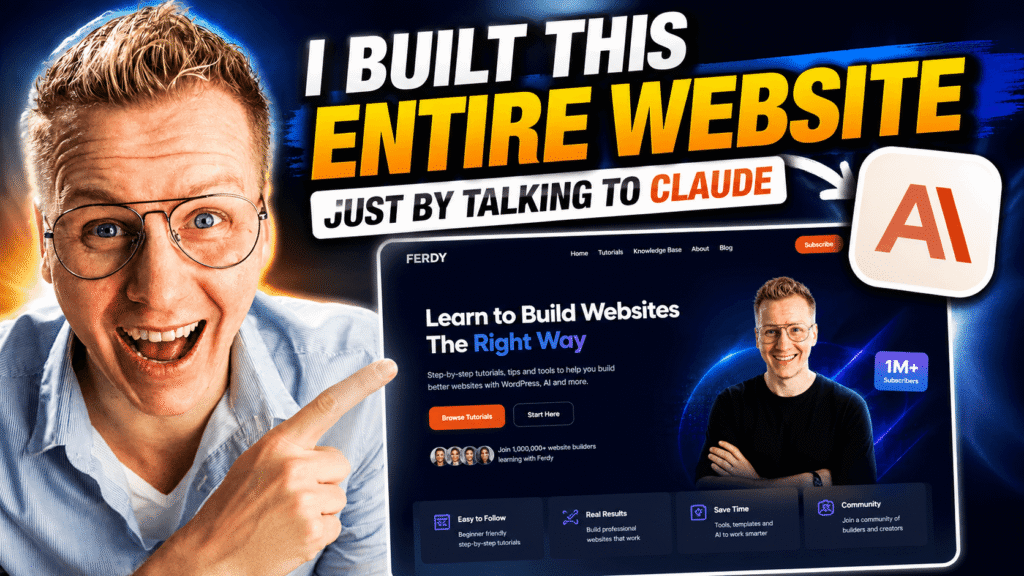
Not just generate a homepage.
I mean create an entire website, customize the design, add pages, publish it on your own domain, optimize it for search engines, and continue making changes to the live website using normal sentences.
That is exactly what I am going to show you in this tutorial.
I created my website using Claude, and instead of manually writing HTML or CSS, I can now take a screenshot of something I want to change and tell Claude:
“Show the latest tutorial big on the left and the other two tutorials on the right.”
Claude makes the changes, I refresh my website, and they are live.
It feels less like coding and more like having a web designer sitting next to me.
In this step-by-step guide, I’ll show you how to do the same.
What We Are Going to Build With Claude
By the end of this tutorial, you’ll have a complete website that can include:
- A professionally designed homepage
- An About page
- Tutorial or service pages
- A searchable knowledge base
- Responsive layouts for desktop, tablet, and mobile
- Internal links
- SEO-friendly pages and URLs
- Legal pages
- A cookie consent system
- Your own domain name
- Web hosting
- The ability to update your live website using prompts
You don’t need to be a professional web designer or know how to write HTML and CSS.
You mainly need to be able to explain what you want.
Can Claude Build a Complete Website?
Yes. Claude can create the HTML, CSS, JavaScript, pages, navigation, layouts, animations, and other components needed for a complete website.
What makes this particularly interesting is that you don’t have to stop after generating the first version.
You can continue having a conversation with Claude.
If you don’t like something, tell Claude.
If you want a section redesigned, tell Claude.
If you have an image you want to use, upload it.
If Claude doesn’t understand what you mean, take a screenshot and point it in the right direction.
This changes website building from:
Write code → test → debug → change code
into something much closer to:
Describe → review → adjust → publish.
Let’s create one.
1. Get Claude
The first thing you need is a Claude account.
For this tutorial, I use the desktop version of Claude because we’ll eventually work with both Claude Cowork and Claude Code.
After creating your account, download and install Claude on your computer.
I use Claude Opus 5 for creating the website in this tutorial.
Once everything is installed, we’re ready for the most important part: telling Claude what kind of website we want.
2. Describe the Website You Want
You don’t need to start by learning HTML.
Start by imagining that you’re hiring a web design company.
What would you tell them?
For my website, for example, I wanted a website where I could teach people how to create websites.
I wanted:
- A homepage
- My latest tutorials
- An About page
- A knowledge base
- Information about WordPress, Elementor, HTML, CSS, MCPs, and other topics
- A clean and modern design
I also already had content on Ferdy.com, so I told Claude it could use my existing website as a source of information.
Your initial description doesn’t have to be perfect.
Just explain what you want in your own words.
Improve Your Website Prompt With AI
Before giving the prompt to Claude, I like to improve it using AI.
I personally use ChatGPT for this.
I write my rough website idea and ask:
Make this prompt for Claude Opus 5 better.
AI can then turn a relatively simple description into a much more detailed website brief.
Copy the improved prompt and give it to Claude.
Now let Claude start building.
3. Let Claude Create Your Website
After submitting my prompt, Claude generated the first version of my website in roughly 10 minutes.
And this is where things become fun.
Instead of receiving only a basic landing page, Claude created a complete design based on what I had described.
I had:
- Navigation
- Animations
- Tutorial sections
- Categories
- An About page
- A knowledge base
- A footer
- Multiple pages
- Responsive layouts
Was everything perfect?
Of course not.
And that’s actually one of the most important things to understand about this workflow.
The first version does not need to be perfect.
Think of it as your first conversation with your web designer.
Now we start giving feedback.
4. Edit Your Website With Screenshots and Prompts
This is probably my favorite part of building websites with Claude.
Let’s say I see something on the website that I don’t like.
Instead of finding the CSS class, opening a stylesheet, changing the code, and testing it again, I can simply take a screenshot.
I upload the screenshot to Claude and say:
Make the header on every page full width.
Claude makes the adjustment.
Or I could say:
Remove Home from the navigation. People can click the logo to return to the homepage.
Or:
Make this text wider on all the legal pages.
Or:
Make the logo 70% of its current size.
You can talk naturally.
Your English doesn’t have to be perfect. Your prompt doesn’t have to sound technical.
Just explain what you want.
If Claude gets it wrong, explain it differently or provide another screenshot.
Treat Claude Like Your Web Designer
This is the mindset that made the biggest difference for me.
Don’t think:
“What code do I need?”
Think:
“What would I tell my web designer?”
You can even combine several changes into one request.
Instead of sending 10 separate prompts, go through the website, make a list of everything you want changed, attach the relevant screenshots and send everything to Claude at once.
5. Create a Knowledge Base With Claude
One of the things I wanted on Ferdy.com was a knowledge base.
For example, visitors might want to know:
- What is Elementor?
- What is CSS?
- What is HTML?
- What is a CDN?
- What is Gutenberg?
- What is an MCP?
Claude created pages explaining these terms in an easy-to-understand way.
But there is another reason I like this structure.
Internal linking.
A knowledge base article can link to related tutorials, while tutorials can link back to relevant knowledge base articles.
That creates a useful network of related content instead of a collection of isolated pages.
For example, someone reading an Elementor tutorial can click through to learn exactly what Elementor is.
And someone who finds the Elementor knowledge base article can discover my related Elementor tutorials.
That is useful for visitors and gives search engines more context about how your content is related.
6. Publish Your Claude Website on Your Own Domain
At first, my website existed locally on my computer.
That works while creating the initial prototype, but eventually we want a real website.
We need two things:
A domain name — the address people use to visit your website.
Web hosting — the server where your website files are stored.
For this tutorial, I use Hostinger.
After purchasing hosting and registering the domain, I can connect the website I’ve created with Claude to my hosting environment.
The interesting part is what happens next.
Instead of downloading a completely new website every time Claude makes a change, we can work on the actual website files and publish those changes.
7. Connect Claude Code With Your Website
After creating the initial website with Claude, download the latest version and put the website files inside their own folder on your computer.
Then switch from Claude Cowork to Claude Code.
Open your website folder as your workspace.
Now Claude Code can work directly with the files that make up your website.
In my workflow, I connect Claude Code to Hostinger using the Hostinger Connector.
Once everything is connected, Claude can make changes to the website files and deploy those changes to the live website.
This is where the workflow becomes extremely powerful.
I can look at my live website, notice something I want changed, take a screenshot and tell Claude what I want.
Claude changes the website.
I refresh the live website.
Done.
8. Clean Up Your Website URLs
Because we’re creating an HTML website, the first version may contain URLs such as:
yourwebsite.com/tutorials.html
I prefer cleaner URLs such as:
yourwebsite.com/tutorials
So I simply asked Claude to remove .html from the visible URLs throughout the website.
Again, I didn’t manually rewrite all the links.
I explained the result I wanted and let Claude implement it across the website.
Clean URLs are also easier for visitors to read and share.
9. Add Your Own Logo and Images
At some point, you obviously want to replace placeholder content with your actual branding.
Upload your logo and images to Claude and explain where you want them used.
For example:
Use the white SVG logo at the top of the homepage. When the visitor scrolls and the navigation becomes light, use the regular logo.
You can also upload several photographs and tell Claude:
Use these images to replace the placeholder images throughout the website. If there isn’t a suitable image for a particular section, let me know.
Claude can then decide where the images fit within the existing design.
And if you don’t like the result?
Tell Claude.
That’s the beauty of this workflow.
10. Add Your Real Content
A beautiful website is not very useful when it’s full of placeholder content.
So the next step is replacing everything with real information.
In my case, that means adding my actual tutorials from Ferdy.com.
Claude can use the tutorial information and place it into the appropriate areas of the website.
My tutorial archive can then contain categories and filters, while individual tutorial pages can link to related knowledge base terms.
Adding New Content Later Is Easy
This is another reason I like this setup.
When I publish a new tutorial, I don’t necessarily have to manually create everything from scratch.
I can give Claude the new tutorial and say something like:
Here is my latest tutorial. Add it to my website and place it in the appropriate categories.
Claude can update the relevant parts of the site.
The website becomes something you can maintain through conversation.
11. Optimize Your Claude Website for Search Engines
Once you’re happy with the design and content, you can ask Claude to review and optimize the website for search engines.
For example:
Optimize my website for the search results.
But I recommend going further than one generic SEO prompt.
Ask Claude to review things such as:
- Page titles
- Meta descriptions
- Heading structure
- Internal links
- Image alt text
- URL structure
- Structured content
- Mobile usability
- Broken links
- Page performance
You should still review the results yourself rather than assuming every AI-generated SEO decision is automatically correct.
Can Claude Websites Rank on Google?
A website isn’t automatically going to rank simply because Claude created it.
However, a properly built HTML website can absolutely be crawled and indexed by search engines.
I discovered this myself when I created an experimental website for my church using Claude. Later, someone contacted me because the experimental site had appeared prominently in Google when searching for the church.
That was a great reminder that an AI-generated website is still a real website.
What matters is the final result: useful content, good structure, accessibility, performance, internal linking, authority and whether the website actually helps visitors.
12. Make Sure Every Link Works
Before considering your website finished, ask Claude to check the complete website for broken links.
During the creation process, I noticed places where buttons or links didn’t lead anywhere yet.
That’s normal while prototyping.
But it shouldn’t remain that way on the finished website.
You can tell Claude:
Check the entire website and make sure there are no links or buttons that don’t work.
Then test the important user journeys yourself as well.
Click around.
Use the navigation.
Open tutorial pages.
Check your footer.
Test everything on mobile.
AI can save you an enormous amount of work, but you are still responsible for reviewing the finished website.
13. Make the Website Responsive
Your website needs to work on more than your computer.
Check it on:
- Desktop
- Laptop
- Tablet
- Mobile
Claude can create responsive layouts and fix responsive issues when you find them.
And the same screenshot workflow works here.
If something looks strange on your phone, take a screenshot and show Claude what you want changed.
Don’t assume that because the desktop version looks great, every screen size will automatically be perfect.
Always test it.
14. Add Legal Pages and Cookie Consent
Depending on your website, location, visitors, technologies used, and applicable laws, you may need legal pages and consent mechanisms.
In my website build, I asked Claude to create the necessary legal pages and implement a cookie consent interface that could adapt based on the visitor’s region.
Visitors could then:
- Accept cookies
- Reject cookies
- Customize their preferences
Importantly, a cookie banner alone does not automatically make a website legally compliant.
Your actual scripts, tracking technologies, data handling, privacy information, and consent behavior need to match the laws that apply to your situation.
So use Claude to help you build the implementation, but verify your legal requirements rather than treating an AI-generated compliance statement as legal advice.
15. Keep Improving the Website With Prompts
At this point, the website is live.
But you’re not finished.
And that’s actually the point.
Traditional website building can make small changes feel disproportionately complicated.
With this workflow, I can browse my website like a normal visitor.
When I see something I want to improve, I take a screenshot and tell Claude.
For example:
Give this section more space at the top.
Make the navigation lighter when I scroll.
Move this tutorial to the center.
Show my latest tutorial large on the left and the other two tutorials on the right.
Add all the headings from this article to the “On This Page” navigation.
And Claude makes the changes.
You don’t need to know the CSS property involved.
You need to know what result you want.
The Future of Website Building?
I’ve been creating websites for a long time, and this workflow feels very different.
For years, creating a professional website meant learning how themes, plugins, HTML, CSS, JavaScript, hosting, templates, custom post types and dozens of other systems worked.
Those skills are still valuable.
But AI is changing where the work happens.
Instead of spending all your time figuring out how to technically implement an idea, you can spend more time deciding what the website should actually do.
What should it look like?
What should visitors see first?
What information do they need?
How can you turn visitors into customers?
What content should you create?
How can you make the experience better?
Claude can increasingly handle the implementation while you direct the result.
Can You Build Websites for Clients With Claude?
Yes, you can use this workflow to create websites for yourself or as part of client work.
But don’t make the mistake of thinking that generating a website is the entire job.
Clients don’t ultimately care whether you used Claude, WordPress or wrote everything manually.
They care about the result.
Does their website:
- Look professional?
- Work correctly?
- Generate leads?
- Explain their offer clearly?
- Work on mobile?
- Load quickly?
- Appear in search engines?
- Make it easy for customers to contact them?
AI makes the production process faster.
Your value is still in creating a website that actually helps the business.
Frequently Asked Questions
Can Claude build a website?
Yes. Claude can generate the HTML, CSS, JavaScript and other files required for a complete website. You can also continue modifying the website using natural-language prompts instead of manually changing every piece of code.
Can Claude build a website without coding?
You can build and customize a website with Claude without personally writing most or potentially any of the code. Claude handles the underlying code based on your instructions. Understanding basic website concepts is still useful for reviewing the result and troubleshooting problems.
Can I edit a website with Claude?
Yes. One of the easiest methods is to take a screenshot of the part of your website you want changed, upload it to Claude and describe the result you want. Claude can then modify the relevant website files.
Can Claude Code publish a website?
Claude Code can work directly with your local website files. With an appropriate hosting and deployment setup, changes to those files can then be deployed to your live website. In this tutorial, I use Hostinger and the Hostinger Connector for that workflow.
Can a website made with Claude rank on Google?
Yes, websites created with Claude can be crawled and indexed like other websites when they are properly built and accessible to search engines. Using Claude does not guarantee rankings. Rankings depend on factors including content quality, relevance, website structure, authority, competition, technical SEO and user experience.
Do I need WordPress to build a website with Claude?
No. The website in this tutorial is built using website files such as HTML and CSS rather than requiring WordPress. WordPress remains another option if you prefer its content management system and ecosystem.
Can I use my own domain with a Claude website?
Yes. Once you have a domain and compatible web hosting, you can publish the website files generated with Claude on your own domain.
Do I need Claude Code?
You don’t necessarily need Claude Code to generate an initial website prototype, but it becomes particularly useful when you want Claude to work directly with your website files and integrate that workflow with deployment.
Final Thoughts
What I love most about this way of creating websites isn’t simply that AI can generate a nice design.
It’s the fact that I can have a conversation with my website.
I can look at something and say:
“I don’t like this. Make it bigger.”
Or:
“Put my latest tutorial here.”
Or:
“Make this work better on mobile.”
And Claude can make those changes for me.
That’s a completely different way of building websites.
You don’t have to become a professional developer before you can turn your ideas into a real website.
You need an idea, you need to communicate what you want, and you need to keep improving the result.
And that’s exactly what I hope this tutorial helps you do.